Quick scan · Deep scan · Recover
Get deleted files back from a USB drive on Android.
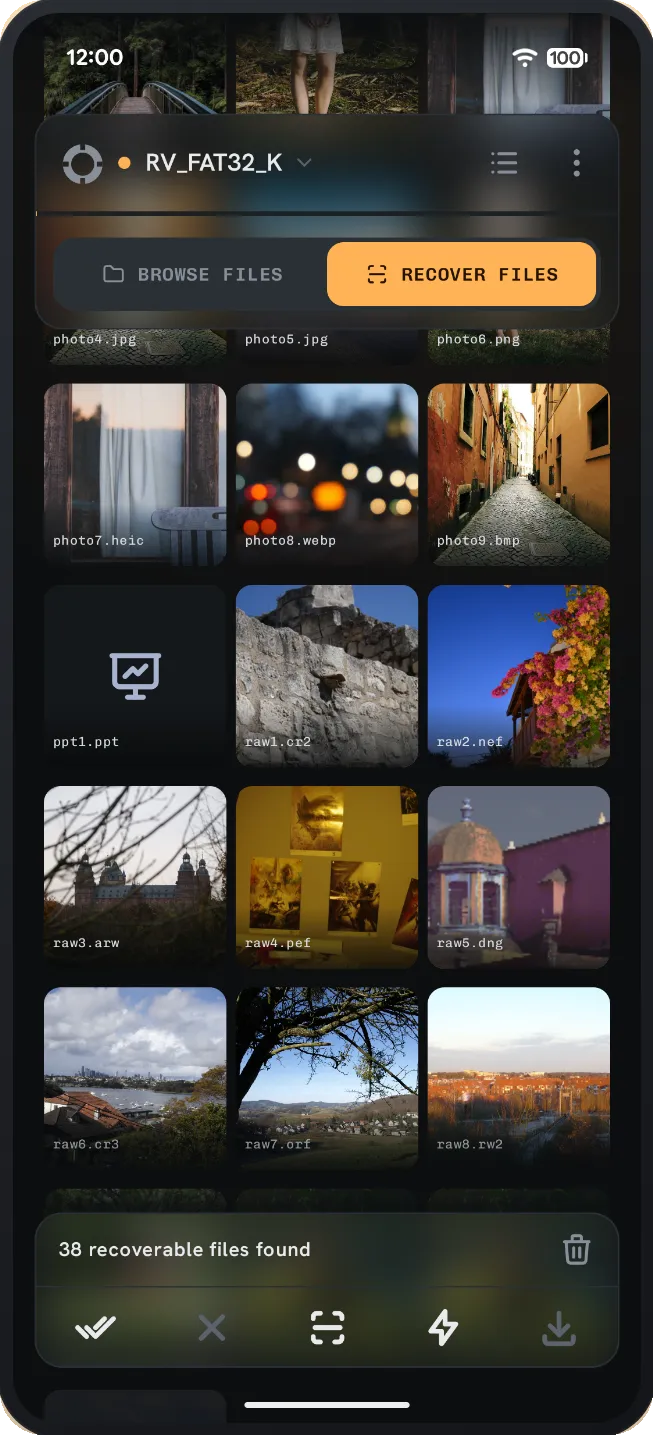
Plug the drive into your phone and scan it. See every file that can be recovered, at full size, before you spend anything.
- No root
- No PC
- Read-only
- No ads
- No trackers
01 - Supported
USB sticks, SSDs, hard drives and card readers.
Plug a USB drive, pen drive, SSD or card reader into your Android phone and scan it. USB Data Recovery reads the drive itself - with its own filesystem engines and its own USB stack - so it works on drives Android will not open. The drive stays read-only. Recovered files go to your phone, never back onto the stick.
- NTFSNames and folders survive
- exFATNames and folders survive
- FAT32Names and folders survive
- APFSMac drives, recent history
- HFS+Older Mac drives
- ext2/3/4Linux drives, recent history
- EncryptedBitLocker, FileVault, LUKS
- No filesystemDeep scan carves by content
02 - Capabilities
USB data recovery on your phone, no PC
Scan and preview first. Pay only if your files are actually there.
It never writes to the drive you are recovering
The drive stays read-only for the whole scan. Recovered files are saved to your phone, never back onto the USB drive they came from. Writing them back is how the rest of the files get lost.
Quick scan keeps names, folders and dates
Reading the filesystem’s own records brings files back the way you knew them, in the folders they lived in - NTFS, exFAT and FAT32 from Windows, APFS and HFS+ from a Mac, ext3 and ext4 from Linux. On NTFS even fragmented files come back in one piece, because the record still says where every part was.
Deep scan works with no filesystem left
After a format, or on a drive nothing will mount, the deep scan reads the raw surface and rebuilds files from what is still there: photos, camera RAW, video, audio, documents and archives. It also reads records an old filesystem left behind, so files off a reformatted drive can still come back named.
Every file graded, and previewed at full size
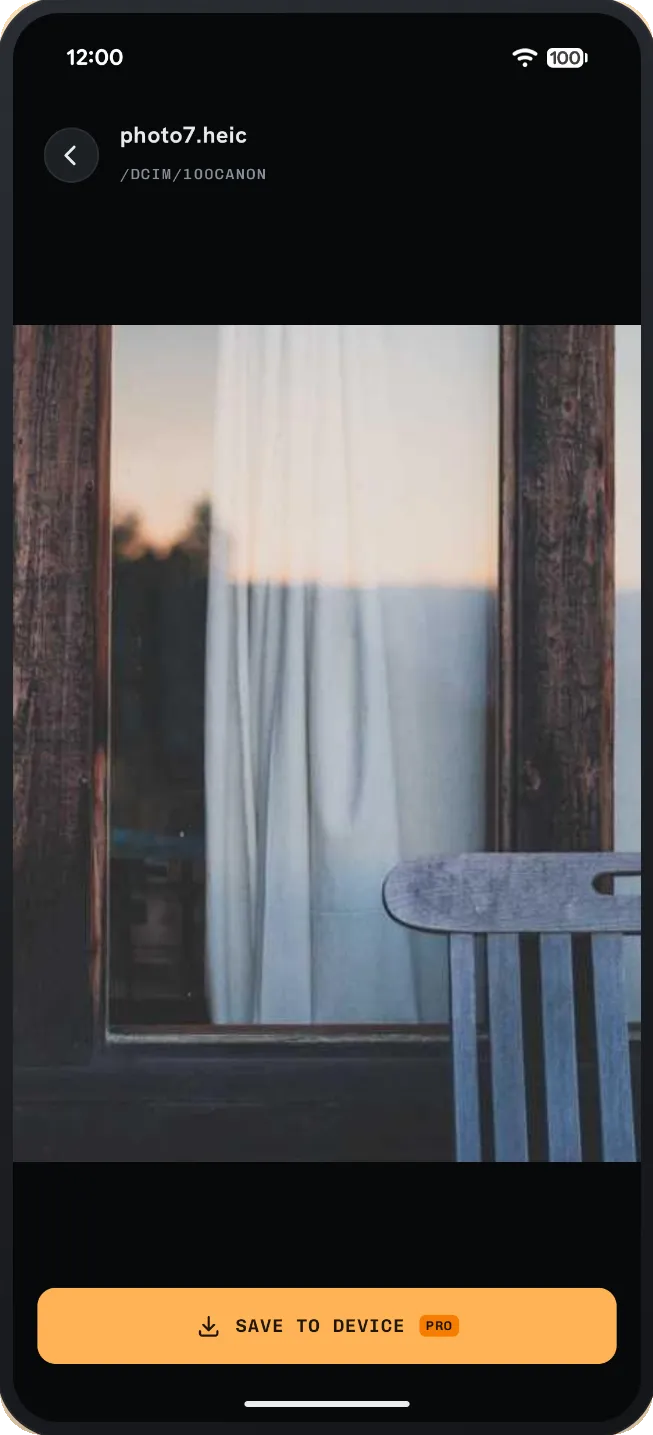
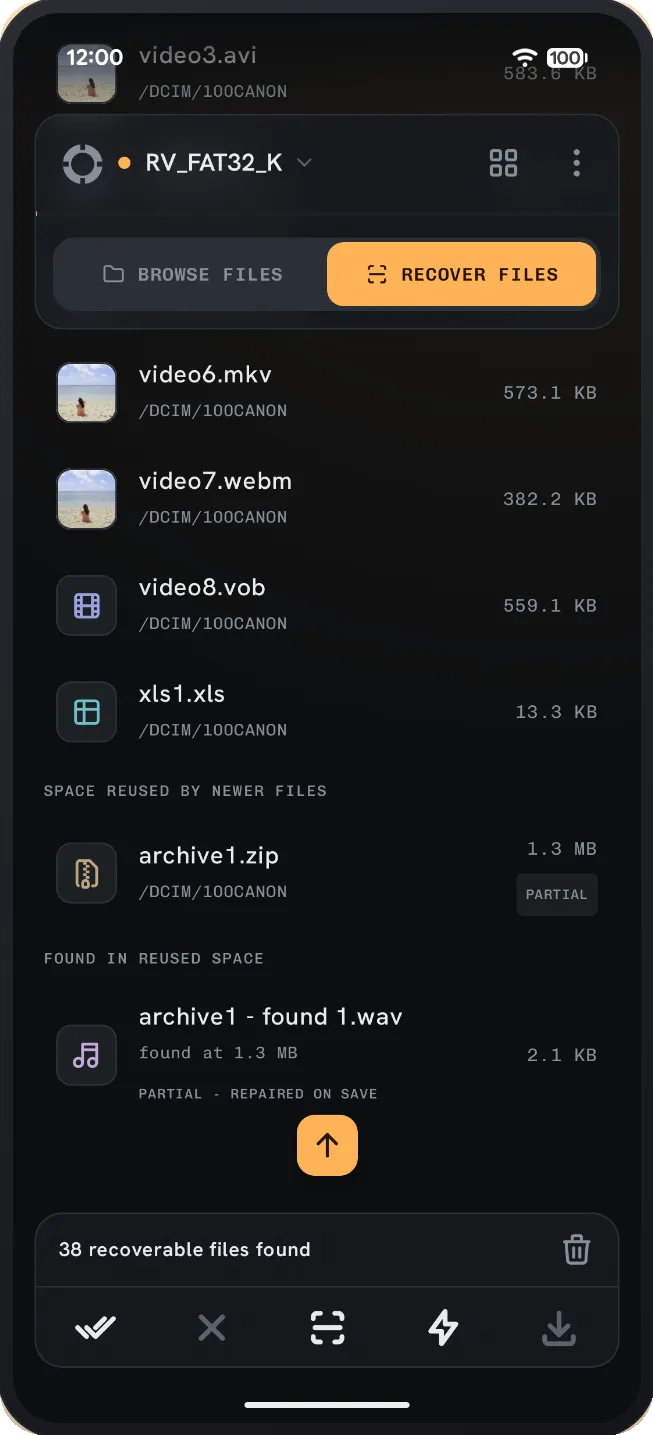
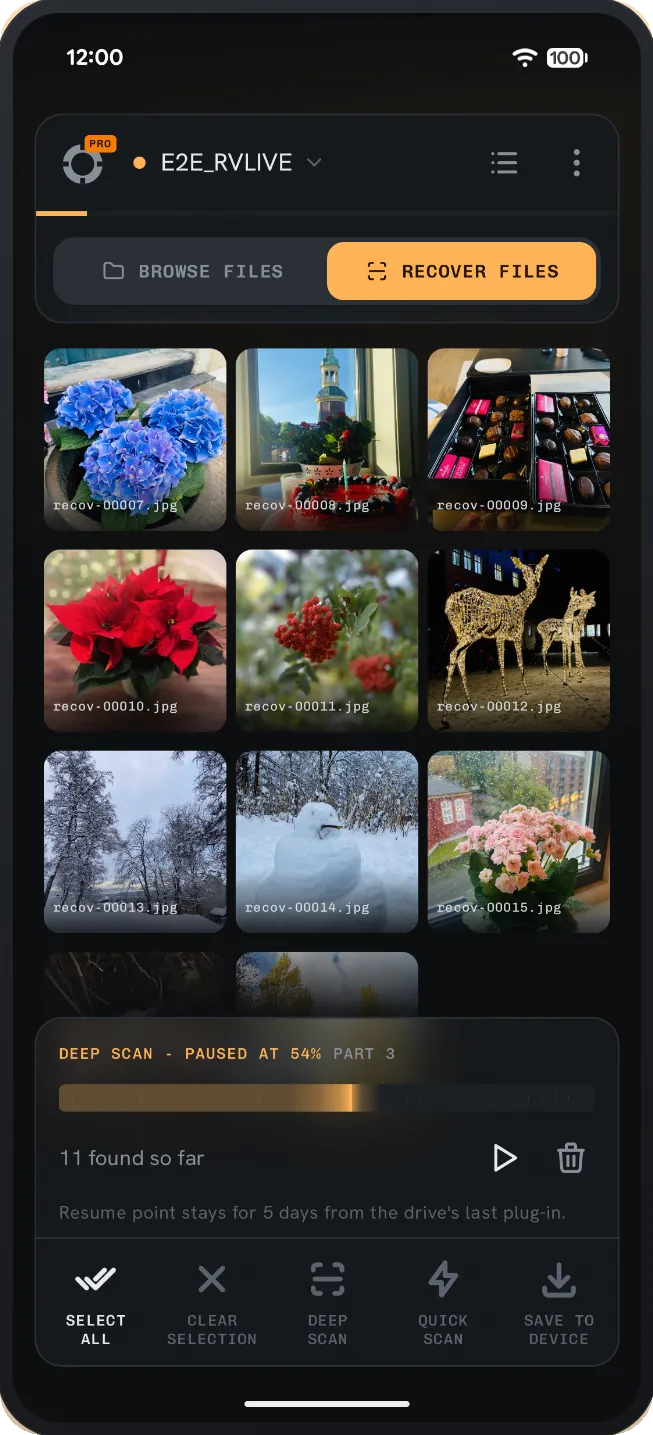
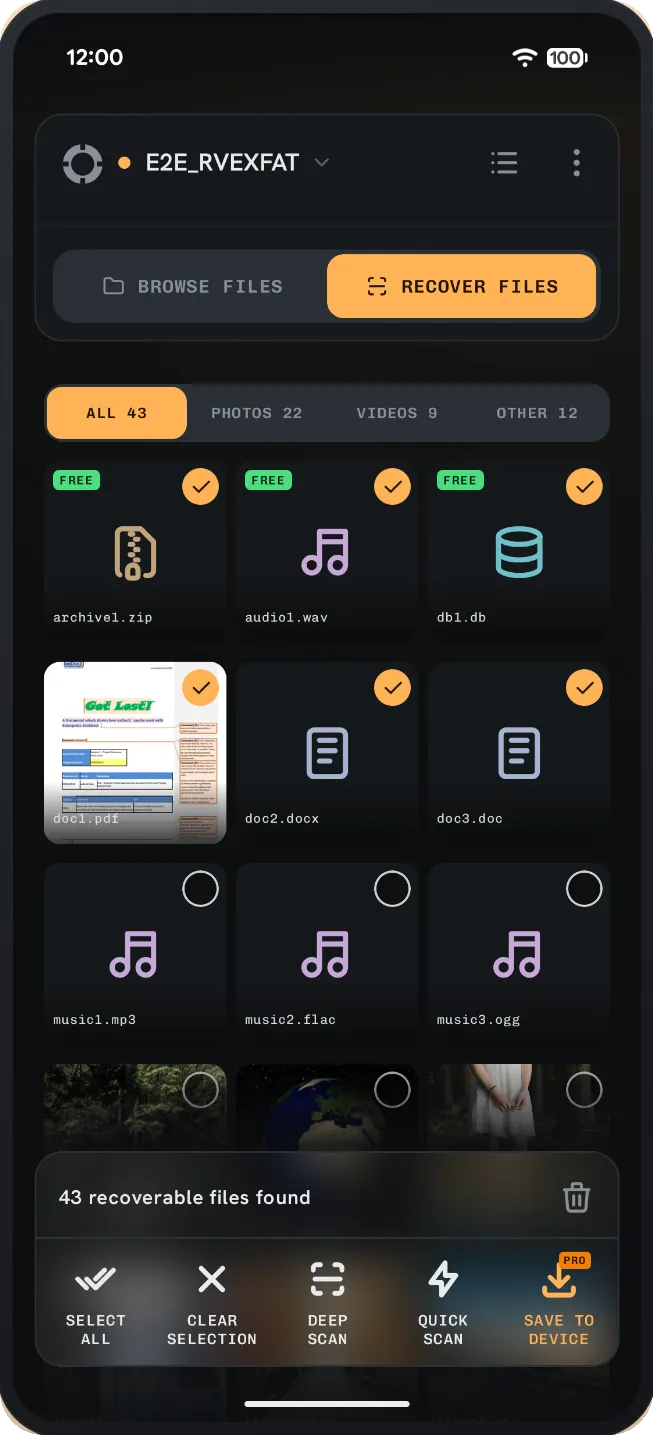
Photos and videos show as real previews, not just filenames. Each file is labelled intact, partly overwritten, or likely gone, so you do not save a broken file thinking it is whole.
Encrypted drives too, once you unlock them
A BitLocker To Go drive opens with its password or 48-digit recovery key, a FileVault drive with its password or personal recovery key, a LUKS drive from Linux with its password or key file, and the scan then runs inside the unlocked volume like any other drive. No Windows PC, Mac or Linux PC involved.
Pause a long scan and pick it up later
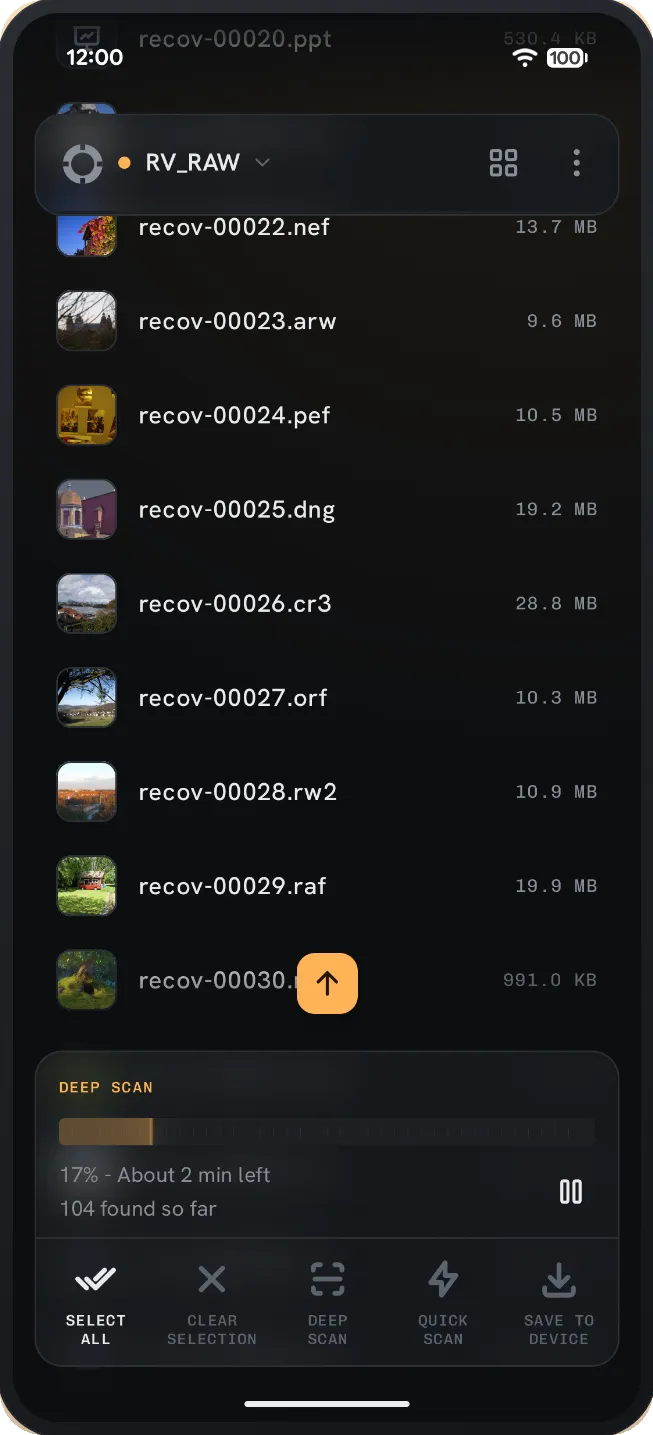
A scan of a large disk keeps running while you use other apps. You can pause, unplug the drive, charge the phone, and carry on from the same place when you plug that drive back in. A different or reformatted drive will not resume by mistake.
03 - The app
Real screenshots from the app
Taken on a phone, on a real USB drive.
04 - Price
Scan and preview for free. Pay only if it worked.
Scanning a drive, previewing every recoverable file at full size, and saving the first three of them are all free - so you can confirm your files are really there before you pay. Saving the rest is one purchase inside the app, not a subscription. No ads at any tier.
Free
Free
Find your files, see them, and get the first three back.
- Quick and deep scans, both unlimited
- Full-size preview of every recoverable file
- Quality labels: intact, partial or likely overwritten
- BitLocker, FileVault and LUKS drives, once unlocked
- Save the first three files of any scan
Saving
One-time
Save and share everything a scan recovers. Bought once, in the app.
- Everything in Free
- Save every recovered file to your phone
- Share recovered files straight to another app
- No subscription, no second app
- Restores free on your other devices
Install free - scan first, decide after.
05 - Spec
- Quick scan
- NTFS, exFAT, FAT32, APFS, HFS+, ext3, ext4
- Deep scan
- Any drive, no filesystem needed
- Encryption
- BitLocker To Go, FileVault, LUKS
- Linux volumes
- LVM (linear), LVM inside LUKS
- Drive access
- Read-only - recovered files go to the phone
- Saves to
- Phone storage, never the source drive
- Requires
- Android 8.0+ with USB OTG support
- Connection
- USB-C direct, or USB-OTG adapter
- Root required
- No
- Network use
- Google Play Billing only
- Trackers
- None - no analytics, ads or accounts
- Package
- dev.stephenkingston.usbrecovery
06 - Questions
USB data recovery on Android - common questions
The answers are also the honest limits - if something does not work, it says so here.
Can I recover deleted files from a USB drive on my phone?
Yes, as long as nothing has overwritten them yet. Plug the drive into your Android phone with a USB-C or USB-OTG adapter and scan it. The app carries its own filesystem engines and its own USB stack, so it can read drives Android itself refuses to open. No computer and no root are involved at any point.
Does it work on pen drives, SSDs and memory cards?
Yes. USB sticks, pen drives, portable SSDs, external hard drives and memory cards in a USB card reader all scan the same way. A card in your phone’s own SD slot does not - that needs the reader.
My phone says the drive is corrupt, RAW, or wants me to format it. Can I still recover files?
Often yes. Do not format it. Plug it in and run a scan. The app reads the drive itself, so it does not need Android to mount it. A drive that looks empty or shows 0 bytes can still have files on it.
Can it recover photos from my phone’s own storage or its SD card slot?
No, and no app without root can. This app recovers from drives you plug in over USB. Your phone’s internal storage is not reachable that way, and neither is a card sitting in the phone’s built-in SD slot. Put that card into a USB card reader and plug the reader in, and it works like any other drive. Please check this before buying - it is by far the most common mismatch.
Does scanning damage the drive, or make things worse?
It cannot. The drive stays read-only. Recovered files are saved to your phone, never back onto the USB drive they came from.
Is it free?
Scanning is free. Previewing every recoverable file at full size is free. Saving the first three files a scan finds is free. Saving the rest is a single one-time purchase inside the app - no subscription, no account, no ads. You see your files, and get some of them back, before spending anything.
What is the difference between the quick scan and the deep scan?
The quick scan reads the filesystem’s own records, so files come back with their real names, folders and dates - but it needs those records to still exist. The deep scan ignores the filesystem entirely and rebuilds files from their raw contents, which is what works after a format or on a corrupted drive, though files then come back as recov-00001.jpg rather than by name. Run the quick scan first; the deep scan is the fallback.
Which drives and formats does it work on?
Quick scan covers NTFS, exFAT and FAT32 from Windows, APFS and HFS+ from a Mac, and ext3 and ext4 from Linux, LVM volumes included. Deep scan works on any drive at all, including one with no readable filesystem left. Encrypted volumes count too, once unlocked: BitLocker To Go with its password or 48-digit recovery key, FileVault with its password or personal recovery key, LUKS with its password or key file.
What kinds of file can the deep scan rebuild?
Photos (JPEG, PNG, GIF, BMP, HEIC), camera RAW (CR2, CR3, NEF, ARW, DNG, PEF, RAF), video (MP4, MOV, AVI, MKV, WEBM, MTS, MPEG), audio (MP3, FLAC, WAV, OGG), and documents and archives (PDF, DOCX, XLSX, PPTX, DOC, XLS, PPT, ZIP).
I formatted the drive by mistake. Is it gone?
Usually not. A quick format writes a fresh empty filesystem over the old one but leaves the file contents where they were, which is what the deep scan reads. The app also looks for records the previous filesystem left behind, so files from a reformatted drive can sometimes come back with their names rather than as numbered carvings. Stop using the drive and scan it as soon as you can.
Can it recover files that were overwritten?
No. Once something else has used that space, the old file is gone. The sooner you stop writing to a drive after losing files, the more of it comes back.
Will I get the original file names and folders back?
From a quick scan, yes - names, folders, sizes and dates all come from the filesystem’s own records. From a deep scan, usually not: files come back numbered, because there is no record left to read a name from.
How do I know a file really recovered before I pay?
Every recoverable photo and video is shown as a full-size preview, free, and each file is labelled intact, partly overwritten, or likely overwritten. Then the first three files save for free. If your files are not really there, you find out before spending anything.
What do I need to connect the drive?
A phone or tablet running Android 8.0 or newer with USB OTG (USB host mode) support, and a way to connect it: a USB-C drive plugs straight in, a USB-A drive needs a USB-OTG adapter. Larger bus-powered external hard disks often need a powered hub, since phones supply limited current. For SD, microSD or CompactFlash cards, use a USB card reader.
Can I scan a big drive without sitting and watching it?
Yes. A scan keeps running while you use other apps, and tells you in the notification shade if it stops - phone full, battery low, or the drive unplugged. You can also pause it, unplug the drive, charge the phone, and resume from the same place when you plug that drive back in.
Does the app collect any of my data?
No. There are no ads, no analytics, no crash-reporting SDKs and no account system, and nothing about your files, their names or your drives ever leaves the device. The app’s only network use is Google Play Billing for the optional one-time purchase, plus Google’s optional "rate this app" prompt - both handled by the Play Store app on your phone.
Where does my BitLocker, FileVault or LUKS password go?
Nowhere. The password, recovery key or key file you use is held in memory on your device for that session only, and used to unlock the volume so it can be scanned. It is never transmitted and never written to disk by the app.
Can it repair a drive, reformat it, or copy files onto it?
No. This app only ever reads. Browsing and writing to a working drive is what NTFS Reader (Windows formats) and APFS Reader (Mac formats) are for - separate apps that can create, rename, move and copy files on the drive itself. This one is only for files the drive has already lost.
Which Android versions are supported?
Android 8.0 (API 26) and newer, on phones and tablets. The app targets Android 16 (API 36).
07 - Guides
How to actually do it
What is recoverable, what is not, and what to stop doing right now - written for the situation rather than for the app.
- How to recover deleted files from a USB drive using only your Android phoneSearch this question and almost every answer tells you to go and find a computer. You do not need one.
- Your drive is asking to be formatted. Here is what to do instead.The message means the index broke, not that the data is gone. Formatting is the one action that turns a recoverable drive into an unrecoverable one.
- How to recover deleted photos from an SD card with an Android phoneCamera cards are the best case in data recovery - and the phone's own card slot is the one thing that will not work.
- Quick scan or deep scan? What each one does, and when to use itThey are not fast and slow versions of the same thing. They read completely different things off the drive.
- How to open and recover a BitLocker To Go drive without a Windows PCEncryption is not the obstacle people assume. With the password or the recovery key, the drive opens and scans like any other.
08 - The other apps
Not the drive you have?
Three apps, one job each. This one is only for files a drive has already lost.

Recover deleted files from a USB drive on Android.
Free to install. Scanning, full-size preview and the first three saved files are free; saving the rest unlocks with a one-time in-app purchase.